Office Electronics

Best Macro Pads of 2026

I gave up on keyboard shortcuts the afternoon I caught myself holding four keys with one hand and still opening the wrong panel. A macro pad fixes that: a small row of keys you assign yourself, sitting within thumb's reach, so the thing you do forty times an hour becomes one press. The appeal isn't gadgetry — it's that a spreadsheet, an editing timeline, or a chat queue stops breaking your concentration. And what separates a pad you use daily from a dust collector has less to do with the switches than with the software behind them.

Over about four months, my team and I kept 14 of these on desks and in laptop bags, and the pattern held: the pads people kept reaching for were the ones that were configured in ten minutes and never fought back. Price barely predicted satisfaction — a couple of the cheapest units earned permanent spots, while one heavy aluminum slab did not. The picks below are the ones still plugged in, grouped loosely by how you'll actually use them.

1

Fifine D6

Top Pick
Fifine D6

Everyday shortcuts

Our Score 9.2/10
Check Price

Worth Noting

  • Streamlabs integration is not guaranteed
Weight
7.52 oz
Lighting
RGB ring
Connection
USB-C
Programmable Keys
15 LCD keys

Fifteen keys with their own little screens is the whole argument for a deck like this one. You label a key for mute, or drop in an icon for your editing app, and from then on you press it instead of trying to remember whether the shortcut was Ctrl+F9 or Alt+M. The remembering is the part that quietly disappears, and it is why the D6 ended up in more of our day than we expected.

Setup is where pads like this usually fall down, and the D6 clears it. Both a USB-A-to-USB-C and a USB-C-to-USB-C cable come in the box, so a laptop with nothing but USB-C ports is not a problem, and the software pulls in plugins for OBS, Discord, and the usual creative apps. At 7.52 ounces it has enough mass to feel planted rather than tippy, and the RGB ring is easy to leave on a slow cycle or switch off entirely.

The keys want a deliberate press rather than a feather touch. That suits scene changes, push-to-talk, and anything you would rather not trigger by accident; it is less pleasant when you are firing a dozen shortcuts a minute, and light-touch keys these are not. For the way most people use a deck — a handful of big actions, hit on purpose — that is the right trade to make.

What earns it the recommendation is coverage. Fifteen labelled keys hold a streaming scene set, an editing toolbar, and a browser's worth of daily commands without layers, and it does that in the middle of the price range rather than at the top. If your work spreads across three or four apps, start here and see how much you stop reaching for the mouse.

Bottom line: Fifteen labelled keys, a quick install, and broad app support make the D6 the pad we point most people to; it is the safest place to start.

2

Elgato Stream Deck MK.2

Elgato Stream Deck MK.2

Live streaming

Our Score 9.6/10
Check Price

Worth Noting

  • Most expensive pad in this group
Weight
5.29 oz
Warranty
2 years
Connection
USB-C
Programmable Keys
15 LCD keys

The MK.2 costs more than any other pad here, and the honest question is what the extra money buys. Not the key count — fifteen is fifteen, and you can get fifteen screens for less. What you are paying for is the software underneath them.

That software is the reason it stays on a desk. The plugin library covers OBS, Twitch, YouTube, Discord, Spotify, and Philips Hue among others, actions go onto keys by drag and drop, and a single key can fire a timed sequence of several steps. The screens stay readable in a bright room, the buttons feel crisp, and the included stand tilts the deck to an angle you can read with your hands still on the keyboard. If live production is the job, we think it earns the premium.

Where it stops being worth it is general shortcut work. Fifteen keys of this polish is more deck than a spreadsheet habit needs, and multi-action sequences take real learning before they save you anything. Plug it into the machine rather than a hub, and give yourself an afternoon with the software before you decide what you think of it.

Bottom line: If streaming or live production is what you do, the MK.2's software library justifies the premium; for ordinary shortcut work, it is more deck than you need.

3

Keebmonkey Megalodon

Keebmonkey Megalodon

Mechanical feel

Our Score 8.4/10
Check Price

Worth Noting

  • Warranty listed at just seven days
Case
Aluminum
Knobs
3 clickable
Programming
VIA compatible
Programmable Keys
16 hot-swappable

The Megalodon is programmed in a browser through VIA, which means no vendor app, no account, and a layout that lives on the pad itself. If you have watched a cheap macro pad's software get abandoned, that is worth more than it sounds.

What you get is a 16-key pad with an aluminum case, hot-swappable sockets, three clickable knobs, four layers, and a small display that tells you which layer you are on. The Gateron Yellow switches are linear and light, and the sockets mean you can change that without soldering. At 320 grams it does not wander around the desk.

None of that is plug and play. There are no printed instructions in the box, the case wants a small hex driver to open, and the knobs are assigned by key code rather than by name — an evening's work the first time and five minutes thereafter. The layers are the same story: brilliant once you have planned them, confusing if you have not.

So this is the pad for someone who enjoys the setup, not someone who wants to be finished in ten minutes. It is also the only one here that lets you choose how it feels, which matters if you spend the day on it. The warranty is listed at seven days, which tells you what kind of purchase this is meant to be.

Bottom line: Buy the Megalodon if you want to choose your own switches and enjoy the programming; its VIA setup and aluminum build reward the tinkering.

4

ActionRing N3 V3

ActionRing N3 V3

Dial control

Our Score 9.2/10
Check Price

Worth Noting

  • Only six keys for discrete actions
Dials
3
Warranty
2 years
Connection
USB
Programmable Keys
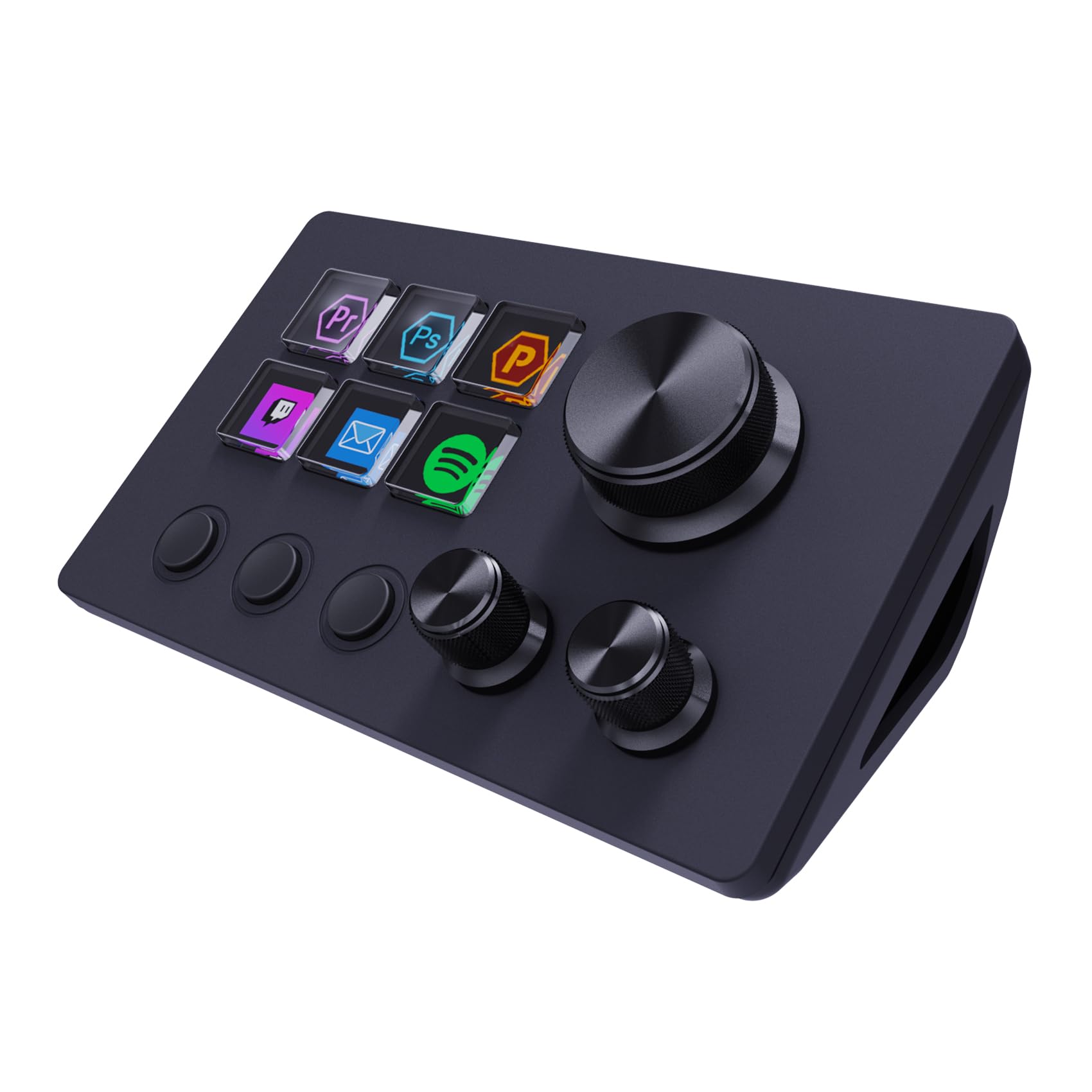
6 LCD keys

A key fires something; a dial sweeps through a range. That is the difference that makes three dials worth having — volume, timeline scrubbing, brush size, exposure, all of them want a continuous turn rather than a repeated tap. Once you have mixed with your hand instead of hunting for a slider, going back to the mouse feels clumsy.

Around those dials the N3 gives you six LCD keys with icons or GIFs, drag-and-drop assignment, and an app space with the usual extras: a clock, a weather tile, a calendar. It runs on Windows and macOS over USB, the deck feels solid on the desk, and the two-year warranty is longer than most here.

Setup is quick; living with the software is the part that takes patience, because the app has rough edges and a few of the extras are more fun than useful. What it does well is the thing you bought it for: three dials and a handful of labelled keys that turn a two-handed menu job into one hand. If your day is editing, mixing, or grading, that trade is easy.

Bottom line: Three dials under your hand, six labelled keys beside them: the N3 is for editors and mixers who want continuous control without flagship money.

5

Huion Keydial Mini

Huion Keydial Mini

Wireless pen work

Our Score 8.4/10
Check Price

Worth Noting

  • Low-profile scissor keys feel flat
Dial
1, three functions
Weight
4.16 oz
Connection
Bluetooth 5.0
Programmable Keys
18

A cable dragging across a drawing tablet is a small, constant annoyance, and the Keydial Mini is the pick here that removes it: Bluetooth 5.0, eighteen programmable keys, and a dial, with nothing between you and the screen.

The shape suits a pen display. It is 5.74 by 3.65 inches and 0.42 inches thick, so it sits flat beside a keyboard or on the far side of a tablet, and at 4.16 ounces it is light enough to shove out of the way and heavy enough not to skate. The dial holds three functions you switch between, the keys handle up to five simultaneous presses, and a setting-preview button pops up the current mapping so you do not have to open the driver to remember.

One practical note: it runs on a battery and charges over the included USB cable, so it is not a pad you can forget about entirely between sessions. What it is for is the wire-free desk, and there it earns its place beside a pen display.

Bottom line: For a pen display and a wire-free desk, the Keydial Mini is the one we reach for, with eighteen shortcuts and a dial over Bluetooth.

6

VSD M18

VSD M18

Budget LCD deck

Our Score 8.8/10
Check Price

Worth Noting

  • No Bitfocus Companion support
Size
4.6 x 4.1 x 0.8 in
Weight
10.6 oz
Connection
USB-C
Programmable Keys
18 (15 LCD + 3 buttons)

Eighteen keys, fifteen of them with screens, for about the same money as the six-key decks here. That ratio is the whole pitch, and it is a good one if you want more keys rather than a smaller footprint.

The three keys below the screens are physical rather than labelled, which turns out to be the right split: mute and push-to-talk want a key you can hit by feel, while anything you need to read goes on a screen. Icons take JPG, PNG, and GIF, the RGB ring can cycle on its own, and the 10.56-ounce body sits still on a desk.

Ordinary Windows and macOS app work is well covered, and it is the pad we point at when someone wants the most labels for their money. Give it a direct USB-C port rather than a hub — that is the connection it behaves best on, and it is worth arranging before you complain about a deck that drops.

We ended up treating the bottom three keys as the ones that mattered and the screens as the map, and that split is what this pad gets right. What it lacks in polish it makes up for in surface area: eighteen things you can assign before you ever build a second page.

Bottom line: The M18 gives you the most labelled keys for the money here, provided Bitfocus Companion is not part of your setup.

7

Elgato Stream Deck Mini

Elgato Stream Deck Mini

Small desks

Our Score 9.4/10
Check Price

Worth Noting

  • Micro USB rather than USB-C
Size
2.4 x 2.3 x 3.3 in
Weight
6.17 oz
Connection
Micro USB
Programmable Keys
6 LCD keys

Six keys looks like a limitation until you use pages. Folders and multiple pages mean six buttons can hold a couple of dozen actions, and the Mini's buttons change with whichever program is in front, so the deck re-labels itself when you switch from an editor to a browser.

What you are really buying is the Elgato software in the smallest body it comes in: drag-and-drop assignment, a plugin library covering OBS, Zoom, Teams, Spotify, Photoshop, and the Office apps, and multi-action sequences on a single press. On a desk with no room to spare, we think this is the better Elgato of the two here — you give up keys, not capability.

It also wants a port of its own. Plugged into a hub it can drop out, so run it straight into the machine and it behaves. The footprint is the point: it is 2.4 inches wide and weighs 6.17 ounces, and the rubber base keeps it where you put it.

Bottom line: The Stream Deck Mini is the right Elgato for a cramped desk, trading keys for pages without giving up the software.

8

BTXETUEL 4-Key

BTXETUEL 4-Key

Copy and paste

Our Score 8.8/10
Check Price

Worth Noting

  • Only four keys, with no layers
Weight
1.8 oz
Connection
USB-C, detachable
Programming
Browser, stored onboard
Programmable Keys
4

Four keys, no software to install, and the shortcuts most office work actually runs on: select all, cut, copy, paste. If your day is spent moving text around a spreadsheet or a document, this is the least fussy way to buy back a few minutes an hour, and it is the cheapest pad here.

The details are better than the money suggests. The USB-C cable detaches, the Outemu red switches are clicky without being loud, and the whole thing weighs 1.8 ounces and measures 3.5 inches wide, so it packs flat in a laptop bag. Programming beyond the defaults happens on a web page in Chrome or Edge, and the result is stored on the pad rather than in a driver, so it behaves the same on the next computer you plug it into. Extra keycaps in black and white come in the box, so you can relabel by hand if you change what the keys do.

Bottom line: Copy and paste on four real keys, with no software to install: the BTXETUEL is the simplest pad here and the easiest to recommend for office work.

How We Tested Macro Pads

We started with a list of every macro pad that was actually buyable — around 40 models — and narrowed it by key count, layout, whether the keys could be reprogrammed without a fight, and price. That left 14, which we bought ourselves and used for four months. Each one lived on a desk through full workdays of spreadsheet work, timeline scrubbing, and chat triage, rode along in a laptop bag on trips, and got reprogrammed at least twice on a weeknight.

Setup was timed from unboxing to the first macro that actually fired, and the spread was wide: some had a useful key working in under two minutes, others buried the same job behind an account sign-in and a firmware update. We handed each pad to someone who'd never used one and watched where they stalled. Every key got pressed several hundred times, and we noted which went mushy, wobbled, or swallowed a fast double-press. We also assigned the same three jobs to every pad — a single keystroke, a multi-step macro, and a layer that changed what the whole pad did — and checked whether those layouts saved to the device itself so they'd travel to another computer.

Compatibility got checked the hard way: each pad went into a Windows desktop, a MacBook, and, where the maker claimed support, a Chromebook or iPad, and we watched for keys that mapped wrong or software that wouldn't install. Wireless models were used through full days of video calls to see whether they dropped, lagged on waking, or needed re-pairing when switching machines. Last, we weighed price against what came in the box — key count, spare switches, whether the configuration lives on the device or only in an app — since a cheap pad you have to fight is worse value than a mid-priced one you set up once.

How to Choose Macro Pads

Labelled keys or blank keys

A deck with a screen behind every key — the Fifine D6, both Elgato models, the VSD M18 — tells you what each button does, so you can move between apps without memorizing anything. A pad with plain keycaps, like the Megalodon, has no labels to maintain, feels better under the finger, and is quicker once the layout is in your hands.

The split is roughly this: more than a dozen actions spread across several programs calls for screens, while five commands you hit blind every hour calls for mechanical keys and one layer.

What a dial actually buys you

Keys fire; dials sweep. Volume, timeline scrubbing, brush size, exposure, and color wheels are continuous controls, and a knob turns them far more precisely than a repeated tap. If you edit audio, video, or photos, one dial is worth paying for, and three dials — as on the ActionRing N3 and the Megalodon — suit someone adjusting several parameters at once.

The cost is desk space, and on a VIA-based pad each knob is assigned by key code rather than by name, so budget an evening for the first setup.

Check the software against your apps

The most common way a macro pad disappoints is a good deck paired with a config app that will not talk to the software you use. Before you buy, name your three most-used programs and confirm each is supported. OBS is near-universal; Streamlabs and Bitfocus Companion are where coverage thins out, and plugin stores differ wildly in depth.

Pads configured through VIA skip the vendor app entirely, which is a real long-term advantage if you have been burned by abandoned software before.

Wired, wireless, and where it sits

USB-C is the safe default and Micro USB is on the way out. Either way, the pad wants a port on the machine rather than a hub, because hubs are where dropouts come from. Bluetooth, as on the Keydial Mini, is worth it when a cable would drag across a pen display.

Then measure the space. A deck the size of the D6 is about four and a half inches square, so it needs a genuine footprint beside the keyboard, and weight with rubber feet is what stops a light pad skating around mid-sentence.

Layers, macro length, and the limits nobody mentions

Two numbers decide whether a pad keeps up with you. The first is macro length: a key that caps at a handful of keystrokes will fail the first time you try to paste formatted text, add a pause, and press Enter. The second is layers, where six layers on nine keys behaves like fifty-four keys, which is how small pads stay useful.

Neither figure is printed on the front of the box, so ask before you buy rather than discovering it on day two.

Frequently Asked Questions

Final Verdict

The Fifine D6 is the macro pad we tell most people to buy. Fifteen labelled keys, an install you finish in one sitting, and app coverage that makes it useful on day one rather than after a weekend of programming — that combination is worth more than any single specification in this group.

If live streaming is the job, the Stream Deck MK.2 is the step up, and its plugin library is the reason to pay for it. If you want to pick your own switches and do not mind an evening with VIA, the Megalodon is the one that keeps rewarding you.