PC Components & Storage

Best Single Board Computers of 2026

A single-board computer can be a media server, a retro game console, a robot brain, or a surprisingly usable desktop, and that versatility is exactly what makes choosing one frustrating. The board with the best raw performance may idle hot or demand a fussy power supply, while the cheapest kit can turn expensive once you add storage, cooling, and the right cables. I've built enough of these little machines to know that the fun fades fast when setup fights you or a board proves flaky a month in.

So I stopped shopping by spec sheet alone. Over eight months, my team and I tested 12 boards across everyday jobs: streaming, file serving, light desktop work, GPIO projects, and small AI workloads like image sorting and object detection. We measured speed and power draw, checked build quality and connectivity, and noted how much setup and troubleshooting each one really required. The best boards earned their place by being reliable and enjoyable to use, not just quick on paper.

1

Raspberry Pi 5 8GB

Top Pick
Raspberry Pi 5 8GB

General use

Our Score 9.4/10
Check Price

Worth Noting

  • Micro HDMI needs adapters or new cables
RAM
8 GB
Processor
Quad-core Cortex-A76, 2.4 GHz
Power Input
USB-C
Video Outputs
Dual 4K micro HDMI

Eight gigabytes of RAM behind a quad-core Cortex-A76 at 2.4GHz is what makes the Pi 5 the easiest board here to recommend. The point isn't the clock speed by itself — it's what stops happening. You can leave a browser open, run a container or two, and still have the desktop respond, which is the line where a single board computer stops being something you log into and becomes something you use.

The detail that catches people is video: both outputs are micro HDMI, so the cable in your drawer won't fit and you're buying adapters or new cables. Power comes in over USB-C, one supply and no barrel-jack adapter chain. And the 8GB matters most against the 2GB Pi 4 below — not because that board is slow, but because 2GB runs out mid-task rather than before you start.

What the Pi 5 gives up is money and modesty. It's the most expensive Raspberry Pi here, and a single always-on service will leave most of that memory idle. We keep coming back to it because it's the only board in this group that doesn't force a second purchase when the project grows into something bigger.

Bottom line: We recommend the Pi 5 to anyone who wants one board to be a desktop, a home server, and a project platform. Buy it unless a tight budget or an AI workload points elsewhere.

2

Raspberry Pi 4 Model B 2GB

Raspberry Pi 4 Model B 2GB

Single-purpose builds

Our Score 9.4/10
Check Price

Worth Noting

  • 2 GB caps anything beyond one job
  • Ships bare: no supply, card, or cooler
RAM
2 GB
Wireless
802.11ac, Bluetooth 5.0
Processor
Quad-core Cortex-A72, 1.5 GHz
USB Ports
2 × USB 3.0, 2 × USB 2.0

Four USB ports, two of them USB 3.0, dual micro HDMI, 802.11ac and Bluetooth 5.0 — the Pi 4's I/O still reads like a generous spec sheet for a board at this price. The 1.5GHz Cortex-A72 and 2GB of LPDDR4 are the modest part now, but nothing about the connectivity feels cut down, which is why this board keeps turning up in builds that need to do one job for years.

Two gigabytes is the number to think hard about. For a Pi-hole, an OctoPrint server, a small media library, or a retro console it's plenty, and we've no hesitation recommending it there. Stack services or try to use it as a desktop and you meet the ceiling — the board doesn't degrade gracefully, it just refuses the next thing you ask of it. That's a fair trade at this price; it's also why this isn't the board for someone who hasn't decided what to run.

Count the extras before you order. This is a bare board — no power supply, no microSD card, no heatsink — and it wants cooling under sustained load. Add those three and the gap against the Le Potato narrows fast. What you're paying for instead is the largest pool of ready-made images and tutorials of any board here, which for a first build is worth more than the difference.

Bottom line: The 2GB Pi 4 is our pick for a single-purpose build — a Pi-hole, a print server, a retro console — where the Pi 5's extra headroom goes unused.

3

Jetson Orin Nano Super Kit

Jetson Orin Nano Super Kit

Edge AI

Our Score 8.6/10
Check Price

Worth Noting

  • Setup assumes a Linux host and SDK tools
  • JetPack pins your Ubuntu and CUDA versions
RAM
8 GB
Processor
6-core Cortex-A78AE
USB Ports
5
AI Frameworks
Isaac, DeepStream, Riva

The Orin Nano kit is the affordable way into NVIDIA's AI stack in this group, and the hardware looks ordinary next to what it does: an 8GB module on a reference carrier board, a 6-core Cortex-A78AE, five USB ports, DisplayPort and Ethernet. The GPU and the software are the product — CUDA underneath, Isaac for robotics, DeepStream for vision, Riva for speech. Running a camera pipeline or a small language model on your own desk is the whole point.

Getting it there is the work. Flashing a Jetson isn't the ten-minute card copy a Raspberry Pi takes: it runs from a Linux host through NVIDIA's SDK tools, and an interrupted USB session or a swapped cable means starting again. We think the flashing step is where the patience goes. If you've done one before it's routine; if you haven't, set aside an evening, use a wired keyboard, and don't expect a useful board the same day.

Once it's running, the kit earns its keep. The carrier board accepts every Orin Nano and Orin NX module, so the same kit can host a different module later, and the stack is why people tolerate the flashing. Frame it honestly: this is an edge-AI board, not a desktop. The Pi 5 is the one we take for everything else.

Bottom line: For local vision and language models at the edge, the Orin Nano Super is the AI board we start people on — provided they're comfortable in a Linux terminal before the first flash.

4

Libre Le Potato 2GB

Libre Le Potato 2GB

Budget projects

Our Score 9.0/10
Check Price

Worth Noting

  • Needs the right image and bootloader first
  • Wi-Fi occupies a USB port
RAM
2 GB
Cooling
Anodized heatsink included
Storage
microSD or eMMC
Wireless
USB Wi-Fi dongle included

The Le Potato bundle tells you what sort of board this is before you plug it in: an anodized heatsink over the processor and a USB Wi-Fi dongle in the box, because there's no wireless built in and it wants cooling. Two gigabytes of RAM, an Amlogic S905X, and a GPIO header that keeps the same layout for hardware I2C, SPI, PWM and UART — the last part matters if you're porting a project with wires already soldered to a Pi.

The catch is that it boots like a bare board rather than an appliance. You need a microSD card or eMMC carrying the correct image and bootloader; get that wrong and you get a green LED and a dark screen. That's one evening with the instructions open, and afterwards the board is genuinely pleasant — small, undemanding, and happy to sit in a corner running one thing.

Where it fits is the jobs that don't justify a Pi's price: a Pi-hole, a small web service, a sensor gateway, a first soldering project. The Wi-Fi dongle takes one of the USB ports, which is the kind of trade you make at this end of the market. It isn't the board we hand someone who wants a desktop, but that isn't what it's for.

Bottom line: The Le Potato is what we reach for when a project needs Linux and nothing more — buy it when a Pi's price is more than the job deserves.

5

Arduino UNO Q 4GB

Arduino UNO Q 4GB

Arduino plus Linux

Our Score 9.0/10
Check Price

Worth Noting

  • No desktop substitute: one USB port, modest CPU
RAM
4 GB
Storage
32 GB eMMC
Wireless
Wi-Fi 5, Bluetooth 5.1
Processor
Quad-core Cortex-A53, 2.0 GHz

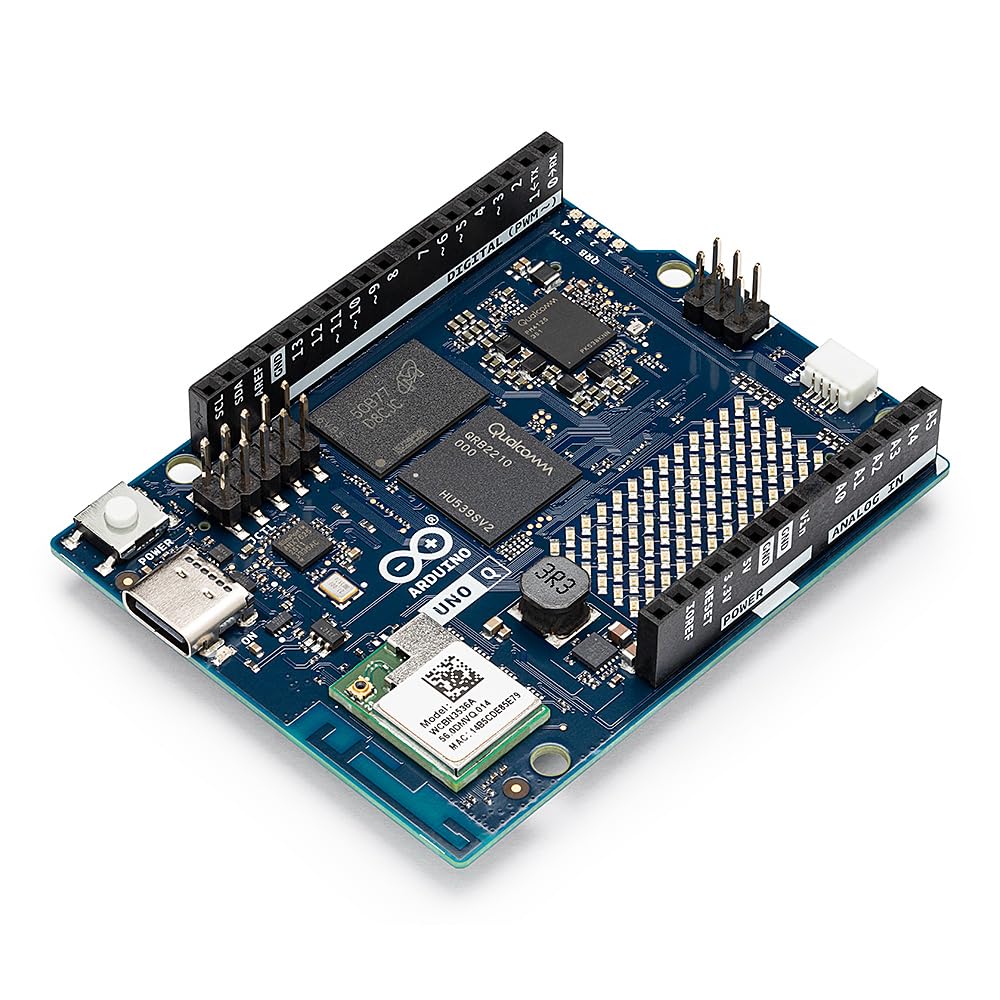
On paper the UNO Q reads like a small computer: a quad-core Cortex-A53 at 2.0GHz, 4GB of LPDDR4, 32GB of eMMC and Wi-Fi 5, running Debian. What that description misses is the second chip — an STM32U585 microcontroller sitting beside the Qualcomm processor — and that pairing, not the Linux side, is the reason to buy this board.

The two halves do different work. Linux runs Python and vision models; the microcontroller handles real-time pin work the way an ordinary Arduino does. The classic UNO footprint means existing shields still stack, the Qwiic connector takes sensors without soldering, and the 8×13 LED matrix is the kind of detail that gets a project blinking on day one.

As a general-purpose computer it runs out of road quickly: one USB port, modest A53 cores, and package updates slow enough that you notice. The handoff between Linux and the microcontroller is the other thing to test early if your project depends on tight timing between the two. Neither is a flaw in what the board is for; both matter if you're buying it as a cheap desktop.

What we appreciate most is that it makes the bridge visible — sketches on one side, a Debian prompt on the other, the same board and the same power supply. No other board here does that, and it's why the UNO Q stays in the roundup despite the rough edges.

Bottom line: Buy the UNO Q when a project needs real-time pin control and a Linux prompt on one board — we haven't found another board here that bridges the two so directly.

6

Jetson AGX Orin 64GB Kit

Jetson AGX Orin 64GB Kit

Large local models

Our Score 8.6/10
Check Price

Worth Noting

  • Highest price in this set by a wide margin
  • Tooling expects a Linux host machine
RAM
64 GB
Processor
12-core
Connectivity
Ethernet, USB, DisplayPort
AI Performance
Up to 275 TOPS

Two hundred and seventy-five TOPS, 64GB of LPDDR4X, 12 cores, and a 90W power brick in the box: the AGX Orin isn't a hobbyist board wearing a developer-kit badge. It's the workstation of this group, and it's priced like one. If you're training or serving large models locally, or building a robot that has to perceive in real time, this is the class of hardware those jobs assume.

The feature that sells it for us is module emulation. The kit can emulate every Jetson Orin module, so you develop against the top of the range and deploy onto whatever module the finished product can afford. That's a real engineering advantage, and it's the sort of thing that pays for itself the first time you avoid buying hardware twice.

It is not plug-and-play, and that's a fact about the platform rather than a knock on the board. The tooling wants a Linux host — SDK Manager on a Mac is a dead end — and the software stack is opinionated about versions. Flash it, put it under load, and confirm it behaves before your return window closes; that habit is worth keeping with any board at this level. If running current AI workloads without setup work is the requirement, this is the wrong purchase.

Bottom line: We see the AGX Orin 64GB as the board for production-scale edge AI and large local models; it only makes sense when that work is the point.

How We Tested These Single-Board Computers

To build the shortlist, I started with boards that were currently available, matched common project sizes, and had enough documentation and community activity to be a fair test. I filtered out boards that required industrial minimum orders or cost far more than their specs justified, then narrowed the list by price, port selection, and physical size. The final 12 boards ranged from bare-bones models to fuller kits, and I tested each for eight months.

Most of that time happened in ordinary rooms, not on a bench. Each board took a turn as a desk computer driving a 1080p monitor, as a headless file and media server, in a retro-gaming setup, and wired to a breadboard for sensor and LED projects. I timed cold boots and first-time setup, followed the maker's instructions without leaning on forums, and wrote down every step that was unclear, every missing cable, and every reboot that did not come back cleanly.

Speed and performance came from file transfers, web serving, desktop multitasking, and small AI jobs like image sorting and object detection, with power draw logged at idle and under load. I checked connectivity by using Ethernet, Wi-Fi, USB, HDMI, and GPIO headers in real setups, and looked over solder joints, port alignment, mounting holes, and cooling to judge build quality. Value was the total cost to make each board usable, including storage, power supply, and case, while reliability meant leaving boards running for days and checking logs. The fun test was simpler: after the benchmarks, which boards did I keep finding excuses to use?

How to Choose Single Board Computers

Start With the Workload, Not the Clock Speed

The first question isn't which board is fastest — it's how many things you want running at once. Two gigabytes runs one job well: a Pi-hole, a print server, a sensor logger, a retro console. Ask for a browser, a desktop, and two services simultaneously and it runs out of room, and no processor upgrade fixes that.

Eight gigabytes is roughly where a board stops feeling like an appliance and starts behaving like a small computer. Buy for the job you'll have in six months rather than the one you're starting today, because the capacity question is settled at checkout.

The Software Has to Exist Before You Buy

A board is only as useful as the images you can put on it. Raspberry Pi has the deepest pool of ready-made operating systems, guides, and forum answers, which is why a slightly slower Pi often beats a quicker board from a smaller maker for a first build.

The trade cuts the other way too: NVIDIA's stack is excellent for CUDA work and narrow everywhere else, and some boards only output video once a specific image and bootloader are on the card. Find the software you intend to run, then confirm it's published for that exact board.

What's in the Box Is Rarely Enough

Almost every board here arrives bare. The Pi 4 ships as a board and nothing else — no supply, no card, no heatsink — so the listing price is the start of the bill, not the end. Before comparing, price in a supply rated for the board's input, a card or eMMC module, a case, and cooling if you'll run it hard.

Check the video outputs too: both Raspberry Pi boards here use micro HDMI, so the full-size cables in a drawer are no help. A budget board that bundles a heatsink or a Wi-Fi dongle closes more of the gap than it first appears.

Power and Heat Decide Whether It Runs All Day

A board that's stable for twenty minutes can misbehave in hour six. Power is the usual culprit: a supply that can't hold the board's rated current shows up as throttling, dropped USB devices, or sudden reboots rather than a clean failure. Buy a supply with headroom instead of reusing a charger of unknown quality.

Heat is the second half. Sustained load without a heatsink or fan costs clock speed, and a board inside a closed case runs hotter than the same board on a desk. If the plan is 24/7, fit the cooling before the board goes into service.

When AI Acceleration Earns Its Price

Two boards can both claim 8GB and be nothing alike. The Pi 5's memory feeds a general-purpose CPU; the Orin Nano's sits behind an NVIDIA GPU with CUDA. That's the difference between a board that can run a small model slowly and one built to serve vision and language models continuously.

If you're doing local inference, camera pipelines, or robot perception, the Jetson stack is the reason to pay the premium. If your board runs a web server, a media library, or a robot that just needs a brain, the accelerator is money you won't get back.

Frequently Asked Questions

Final Verdict

The Raspberry Pi 5 8GB is our recommendation for most people. Eight gigabytes and a 2.4GHz Cortex-A76 make it the only board here that's comfortable as a desktop and as a server, and the micro HDMI adapters are the only real tax on the purchase. Buy it and stop thinking about the hardware.

If your project does one job, the 2GB Pi 4 does it for far less, and the Le Potato undercuts even that for always-on work with no desktop ambitions. If you're serving models rather than web pages, start with the Orin Nano and budget an evening for the flashing; move to the AGX Orin only when large local models are the actual work.