Networking & Wi-Fi

Best Wireless Access Points of 2026

A wireless access point is the unglamorous fix for Wi-Fi that dies at the back bedroom door. It doesn't replace your router; it adds a wired-to-wireless broadcast point where your signal is weak. The right one spreads a stable connection into the rooms your router can't reach, without turning your home network into a science project.

Over the past six months, my team and I have lived with 12 access points, from ceiling-mounted units to compact desktop models. We set each up alone, timed how long it took, and then used them through workdays, streamed shows, and late-night video calls. What separated the good from the frustrating wasn't a spec sheet: it was steady signal in the far room, a setup screen that made sense without a manual, and a guest password I could change in under a minute. These are the ones that earned a permanent spot near the ceiling.

1

TP-Link Omada EAP650

Top Pick
TP-Link Omada EAP650

Most homes

Our Score 9.0/10
Check Price

Worth Noting

  • Gigabit port caps a multi-gig uplink
Power
PoE or included 12V adapter
Rated Speed
3,000 Mbps
Uplink Port
1 GbE
Wi-Fi Standard
Wi-Fi 6 (802.11ax)

Two things decide whether an access point is an afternoon job or a lost weekend, and the EAP650 gets both right: it runs from PoE, and TP-Link still puts a 12V adapter in the box for the rest of us who don't own a PoE switch. That combination is why it's our pick for most homes and small offices. It's a 6.3-inch disc a little over an inch thick, light enough for the included ceiling bracket, with dual-band Wi-Fi 6 rated to 3,000 Mbps.

There's headroom to spare on the radio side. Both bands together are rated to 3,000 Mbps, well past what a domestic internet connection delivers, and the 1024-QAM signalling is what buys the extra. What we appreciate most is that none of it depends on a paid service: Omada Essentials is free, and the app adopts the unit without any drama once the cable is terminated.

Management is the part people overthink. A single EAP650 works from the local web interface or the phone app with no controller at all. The Omada controller earns its keep when you're running three or four units and want devices handed off cleanly between them, guest traffic on its own VLAN, and one configuration pushed to everything at once.

What we keep coming back to is how little there is to notice once it's up: a plain white disc against the ceiling with the cable hidden behind it. In a room where the old router sat on a shelf with its antennas pointed at the sofa, that's the kind of upgrade nobody comments on and everybody uses.

Bottom line: Our default recommendation: with a cable in the ceiling, the EAP650 is the best-balanced access point here — Wi-Fi 6, PoE or a bundled adapter, free management — and nothing else in this group asks so little of you.

2

Ubiquiti UniFi nanoHD

Ubiquiti UniFi nanoHD

Crowded rooms

Our Score 9.4/10
Check Price

Worth Noting

  • No adapter or injector in the box
Power
802.3af PoE
Rated Speed
1,733 Mbps
Wi-Fi Standard
Wi-Fi 5 (802.11ac Wave 2)
Concurrent Clients
200+

Four spatial streams and a rating of 200-plus concurrent clients is business-access-point territory, and the nanoHD is the cheapest way into it in this group. The disc is 6.3 inches across, it takes 802.3af power straight from a standard PoE switch, and UniFi's optional colored covers are the only cosmetic flourish anywhere in this roundup.

We put it second rather than first for one reason: it's a Wi-Fi 5 access point, and the EAP650 gives you Wi-Fi 6 for not much more. That trade is worth making if your network is already UniFi — one dashboard for the AP, the switch and the gateway, and clean handoff between units — or if you genuinely have forty devices competing for airtime in one room. For a two-person household streaming to a television, the newer radio is the better spend.

Management is the other thing to know. UniFi runs from a controller — a Cloud Key, a Dream Machine, or software you host yourself — rather than a phone app you install once and forget. If that's already in place, adoption is a short job. If it isn't, it's one more piece to stand up alongside the access point.

Bottom line: We recommend the nanoHD if you already run UniFi or need one room to hold dozens of devices; on both counts it does something no other pick here does as cheaply.

3

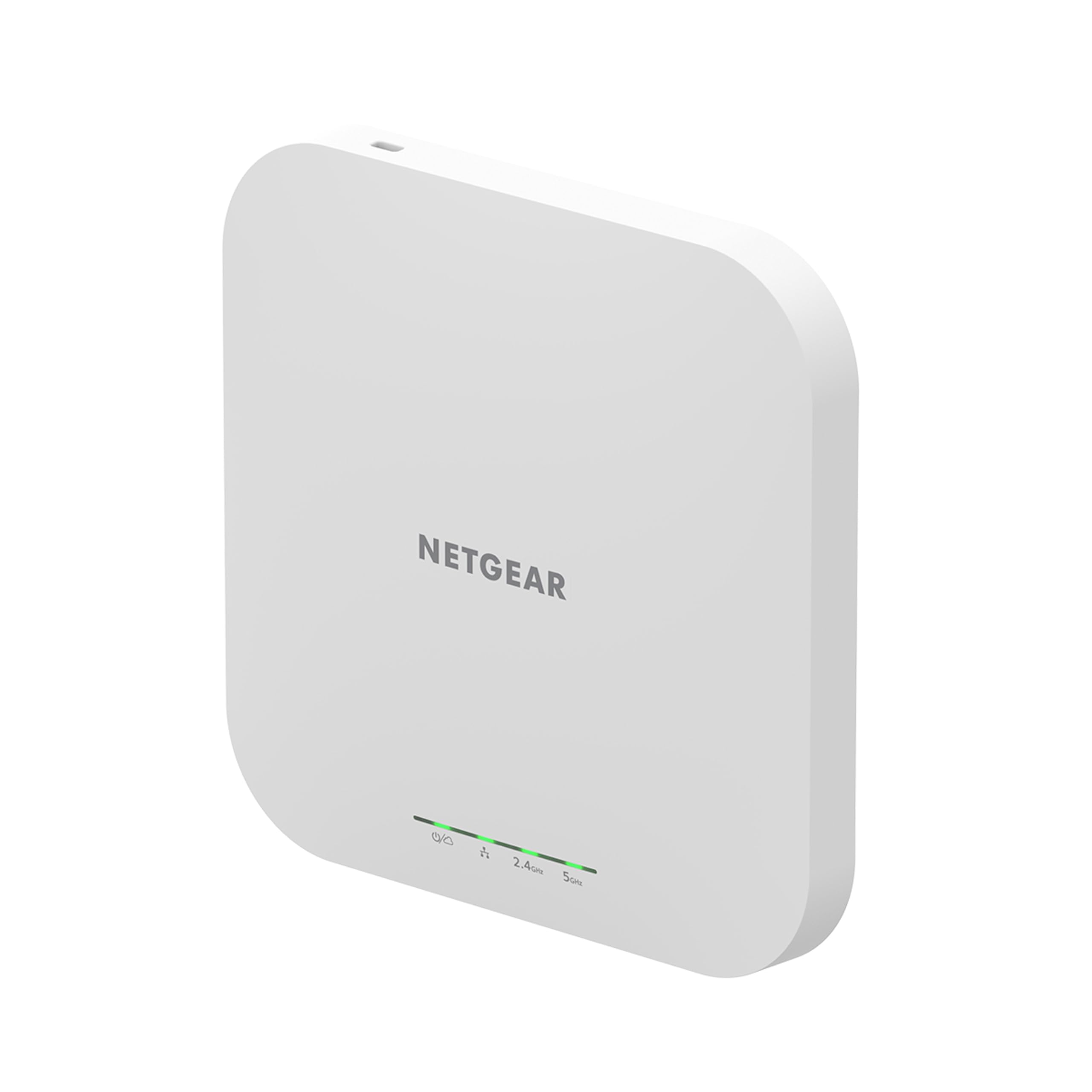
NETGEAR WAX610

NETGEAR WAX610

Multi-gig networks

Our Score 9.0/10
Check Price

Worth Noting

  • No power adapter in the box
  • Insight cloud free for one year only
Rated Speed
AX1800
Uplink Port
2.5G PoE+
Rated Coverage
2,500 sq. ft.
Wi-Fi Standard
Wi-Fi 6 (802.11ax)

The WAX610 is the pick for one specific job: feeding an access point from a network that already moves more than a gigabit. Its Ethernet port is 2.5G and it draws PoE+ down the same cable, so a multi-gig switch and a Wi-Fi 6 radio stop being throttled by a gigabit link. That sounds like a narrow advantage until you're paying for 2-gig fiber and wondering why nothing on Wi-Fi goes past 900 Mbps. We keep it in the list for exactly that buyer.

The rest of the package suits a small office more than a house. NETGEAR rates it for 2,500 square feet and 200 client devices, it supports WPA3, and the wall and suspended-ceiling hardware is in the box. Treat the coverage number as an open-plan figure — 2,500 square feet is one large floor, not a whole two-story house with plaster in between.

Here's the odd part: the EAP650 is rated higher on paper, at 3,000 Mbps against this unit's 1,800. The WAX610's premium buys the 2.5G port, the 200-device rating and a lifetime hardware warranty, not raw radio speed. If your uplink is ordinary gigabit, that trade doesn't pay.

Bottom line: Buy this one when your switch already runs 2.5-gig and you want the access point to keep up; otherwise the EAP650 does the same job for less with a faster radio.

4

TP-Link TL-WA1201

TP-Link TL-WA1201

No PoE switch

Our Score 9.0/10
Check Price

Worth Noting

  • AP-mode drops that clear with a reboot
Power
Passive PoE or AC adapter
Antennas
4 external
Rated Speed
AC1200
Wi-Fi Standard
Wi-Fi 5 (802.11ac)

Not every install has a cable in the ceiling, and the TL-WA1201 is built for the ones that don't. It's a desktop wedge, 8.9 inches wide, with four fixed antennas doing beamforming duty, and it stands on a shelf facing the room you want covered. It takes a wired uplink like any access point, and the passive PoE adapter in the box carries power down that same cable, so the unit itself needs nothing else where it sits.

What we like is the honesty of the thing. Four modes — access point, client, range extender and multi-SSID — chosen from a browser page that doesn't demand an account, plus a two-year warranty. For a spare room, a converted garage or a small shop floor that needs one more network, it does the job for noticeably less than the ceiling units, and it does it without a controller or an app.

The limit is segmentation. Multi-SSID mode with VLANs is where it comes apart, with packet loss climbing sharply once segments are involved; if you need segmented networks, an Omada unit earns its extra money. For a flat network with one or two SSIDs, none of that applies, and you've saved yourself a switch.

Bottom line: Our budget pick for anyone without a PoE switch or a ceiling cable: it sets up from a browser, runs off the included passive PoE adapter, and covers a room for less than the ceiling units.

5

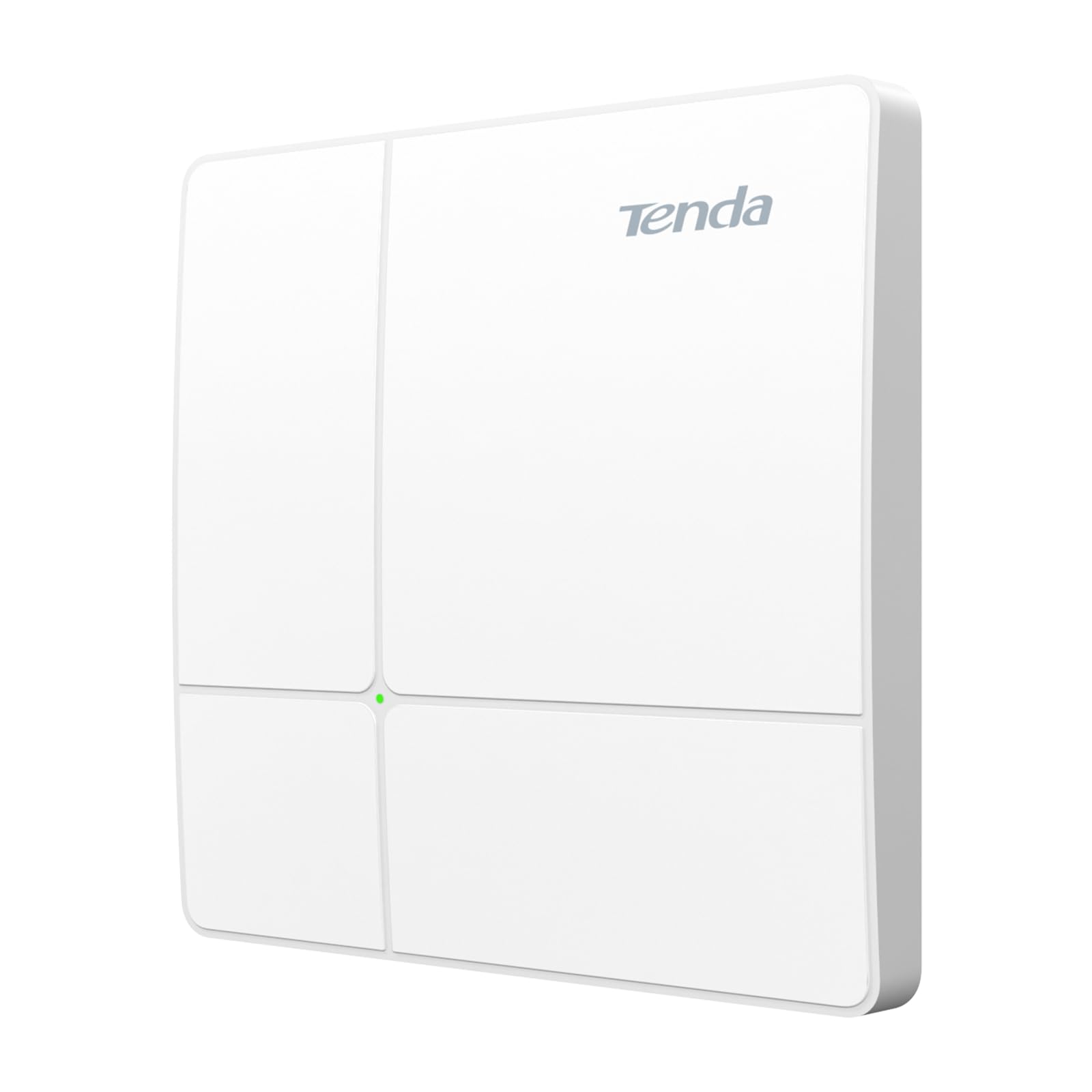
Tenda i24

Tenda i24

Cheap ceiling installs

Our Score 8.4/10
Check Price

Worth Noting

  • AC1200 tops out below the Wi-Fi 6 units
Power
802.3af PoE or 12V DC
Roaming
802.11k/v/r support
Rated Speed
AC1200
Wi-Fi Standard
Wi-Fi 5 (802.11ac)

If the job is a ceiling disc fed by PoE and nothing else, the i24 is the least you can spend to get there. It's 802.3af, so any standard PoE switch will drive it, and it's a proper ceiling unit with a bracket rather than a desktop box balanced on a shelf. AC1200 across both bands, one gigabit port, and 802.11k/v/r support for handing devices between units.

Those roaming protocols are the surprise. Fast roaming at this price is not something we expected to see listed, and it's the difference between walking through a house on a call and hearing it stutter at the doorway. Management comes three ways — the CloudFi app, a cloud account, or the local web page — so you can set it up without signing up for anything.

Where it fits is the unglamorous end of the job: a shed, a garage, a back office, where the devices are older and the walls are the problem rather than the bandwidth. It's a plain access point with a simple management app and no pretensions, which is exactly enough there. A three-year warranty backs it, and the mounting bracket is in the box.

Bottom line: The cheapest way onto a ceiling with PoE done properly, and we're happy to recommend it for a garage, shed or back office where AC1200 is still more than the devices can use.

6

BrosTrend A1P

BrosTrend A1P

Wall plate installs

Our Score 8.4/10
Check Price

Worth Noting

  • No PoE option, so it needs a nearby outlet
Power
AC wall plug
Devices
Up to 32
Rated Speed
AC1200
Wi-Fi Standard
Wi-Fi 5 (802.11ac)

The A1P is the odd shape of the group: a wall-plug access point about six inches tall that goes straight into an outlet and takes its uplink from an Ethernet cable. There's no bracket, no injector and no adapter to lose — you plug it in at the wall plate behind a television or beside a desk, run the included cable to the jack, and it broadcasts a new AC1200 network from there.

Setup is a browser page rather than an app. Two 5 GHz amplifiers and beamforming push the signal toward where the devices are, and BrosTrend rates it for 32 devices — enough for a bedroom, a garage office or a workshop with a television, a laptop and a couple of phones, and not much beyond that.

We like it for rentals and old houses where nobody is drilling a ceiling. The catch is height: put it in a high wall outlet or anywhere with a clear line into the room and it earns its place; bury it behind a sofa at floor level and you've paid for a signal that never gets out of the corner.

Bottom line: We recommend the A1P for a rental, a garage or any room where the Ethernet jack already has an outlet beside it and nobody is going to drill a ceiling.

7

NETGEAR WAX210PA

NETGEAR WAX210PA

Small offices

Our Score 8.0/10
Check Price

Worth Noting

  • Only 30 devices active at once
Power
Included adapter or PoE
Rated Speed
AX1800
Rated Coverage
1,500 sq. ft.
Wi-Fi Standard
Wi-Fi 6 (802.11ax)

The WAX210PA is the one for the person who doesn't want another app. Everything is configured from a browser — the unit serves its own setup page, the default login is printed on the label, and there's no account, no cloud dashboard and no phone involved. In a dental office or a retail back room, that's not a quirk; it's the reason to choose it.

It's a small white box rated for 1,500 square feet, AX1800 across both bands, one gigabit port and WPA3. Power comes from the adapter in the box or from a PoE switch, so you're not forced into either. NETGEAR registers up to 128 clients on it, which is a generous ceiling for a small office, and the wall and ceiling kit is included.

First login is the friction. The password rules are stricter than most, and the browser interface is functional rather than friendly, so read the requirements before you commit to a password. Once you're in, the settings worth changing — SSID, security mode, channel — sit on a single page.

Where it lands for us: the sensible pick for a small professional space that needs one more network without a cloud dependency, and a decent choice for a house where nobody wants to install an app to change a Wi-Fi password. It's the least glamorous box on this list and the easiest one to hand over.

Bottom line: Our pick for a small office that wants browser-only setup and no cloud account, and the easiest unit here to hand to a colleague who doesn't do networking.

How We Tested Wireless Access Points

We started with a shortlist of access points sold for homes and small offices, then filtered out models that required a subscription, lacked a wired Ethernet port, or wouldn't work with a standard router and switch. We tested 12 units over six months on the same home network: a 2,400-square-foot two-story house with a stubborn back bedroom and a detached garage, plus a small office where roughly 20 phones and laptops compete for airtime. I mounted each unit on a wall or ceiling, connected it by Ethernet, and set it up solo using whatever app or browser page the maker provided.

Setup was timed from unboxing to a working Wi-Fi name, including any forced admin password change and guest-network setup. I noted whether the default password had to be replaced, how easy it was to find and reset credentials later, and whether the app explained what the lights meant. For signal strength and performance, I ran speed tests at the kitchen table, back bedroom, garage, and yard, then repeated them with a video call running and a 4K stream going in another room. I walked between rooms to see whether devices handed off cleanly or dropped; on the office network, I checked whether the AP played nicely with the existing router, switch, and wired backhaul.

Reliability showed up in the log: I recorded reboots, dropouts, and any unit that needed a power cycle after a week of steady use. For quality, I looked at the mounting bracket, port placement, and how warm the case ran; for value, I weighed what came in the box, such as a PoE injector, mounting hardware, or extra ports, against the price.

How to Choose Wireless Access Points

Sort Out Power First

Access points get electricity three ways, and they are not interchangeable. A unit built for 802.3af or 802.3at expects a PoE switch or injector that speaks the same standard; a passive-PoE unit wants the injector that came with it; and a third group runs from a wall adapter that may or may not be in the box. The EAP650 covers both bases, taking PoE and shipping with a 12V adapter, while the WAX610 takes PoE+ and arrives without any adapter at all.

Check the box contents against the switch you already own before you fall for a spec sheet. If your switch has no PoE budget left, an injector is a small extra purchase; if it has none at all, buy the unit that includes its own power supply.

Match the Shape to the Spot You Can Reach

A ceiling disc radiates down and outward from the middle of a room, which is why every office install puts one there. A desk unit with four external antennas pushes sideways from a shelf, so it belongs at one end of the space rather than in the middle of it. A wall-plug unit skips the cable run entirely but sits wherever the outlet is.

None of these is better in the abstract. The question is where your cable already ends: behind a ceiling tile, in a wall plate behind a television, or nowhere at all. Answer that honestly and the shortlist picks itself.

Wi-Fi 6 Is the Sensible Floor, and the Port Is the Real Limit

Wi-Fi 6 is worth having on a new install: it spreads airtime across more devices than Wi-Fi 5 does, and the units here that offer it are not much dearer than the ones that don't. What buyers miss is that the Ethernet port sets the ceiling for everything. A 1 GbE port tops out near 940 Mbps whatever the radio claims, so a 2.5G port only matters if your switch and your internet connection already exceed a gigabit.

That is the honest case for the WAX610 and the honest case against paying for Wi-Fi 7 hardware before your uplink justifies it. Buy the radio your clients can use and the port your switch can feed.

Plan for the Second Unit When You Buy the First

One access point is a standalone device; three are a network. The moment you want phones to hand off cleanly between units, you need radios that support 802.11k and 802.11v plus a controller that coordinates them — Omada for the TP-Link picks, UniFi for the nanoHD, Insight for the NETGEAR pair. Roaming without that coordination mostly means your phone clings to the first unit until the signal dies.

So buy into an ecosystem at the start, not after the second box arrives. A single access point needs none of it, which is why we tell people to skip the controller on purchase one.

Ignore the Square Footage, Count the Walls

Coverage figures are measured in open space with a ceiling mount, and a 2,500-square-foot rating collapses in a house with plaster walls, a stairwell and a microwave in the way. Count rooms and barriers instead: one unit per floor is the usual starting point for a stick-built house, and more if the floors are concrete.

Client ratings deserve the same treatment. Thirty active devices is a home office; two hundred is a small business. Add up phones, laptops, televisions, cameras and thermostats, then leave yourself headroom.

Frequently Asked Questions

Final Verdict

For most people the purchase is simpler than the category makes it look: run one cable to the middle of the dead zone, put an EAP650 on the end of it, and stop thinking about Wi-Fi. It is the best-balanced unit here — Wi-Fi 6 radios, PoE or the adapter in the box, and free cloud management if the network grows beyond one access point.

The exceptions are specific. If you already run UniFi, the nanoHD fits what you have and handles a crowded room better. If your switch is 2.5-gig, pay for the WAX610. And if there is no cable and no PoE switch anywhere, the TL-WA1201 or the BrosTrend A1P will cover one room without either.